Dockerizing Your Application
This post links to: Building a Spring Boot CRUD App With Postgres from Scratch: The Complete Guide.
This guide follows on from Database Migrations with Liquibase in Spring Boot.
So far in the series, we've built a Spring Boot CRUD API from scratch, added security, documentation, database migrations, and tested everything locally. Now it's time to package our application using containerisation to prepare it for deployment to the cloud.
By the end of this post, you’ll have a production-ready Docker image for your application.
NOTE: If you want to publish your own container image or plan to follow along with the deployment blog which is next in this series, fork the repository now and work from your fork. This allows you to publish images to your own GitHub Container Registry namespace and experiment freely without affecting the original project.
Traditional Deployment vs Virtual Machines vs Containers
Before cloud-native systems and containers became common, applications were usually deployed directly onto physical servers or manually configured virtual machines.
Traditional Physical Servers
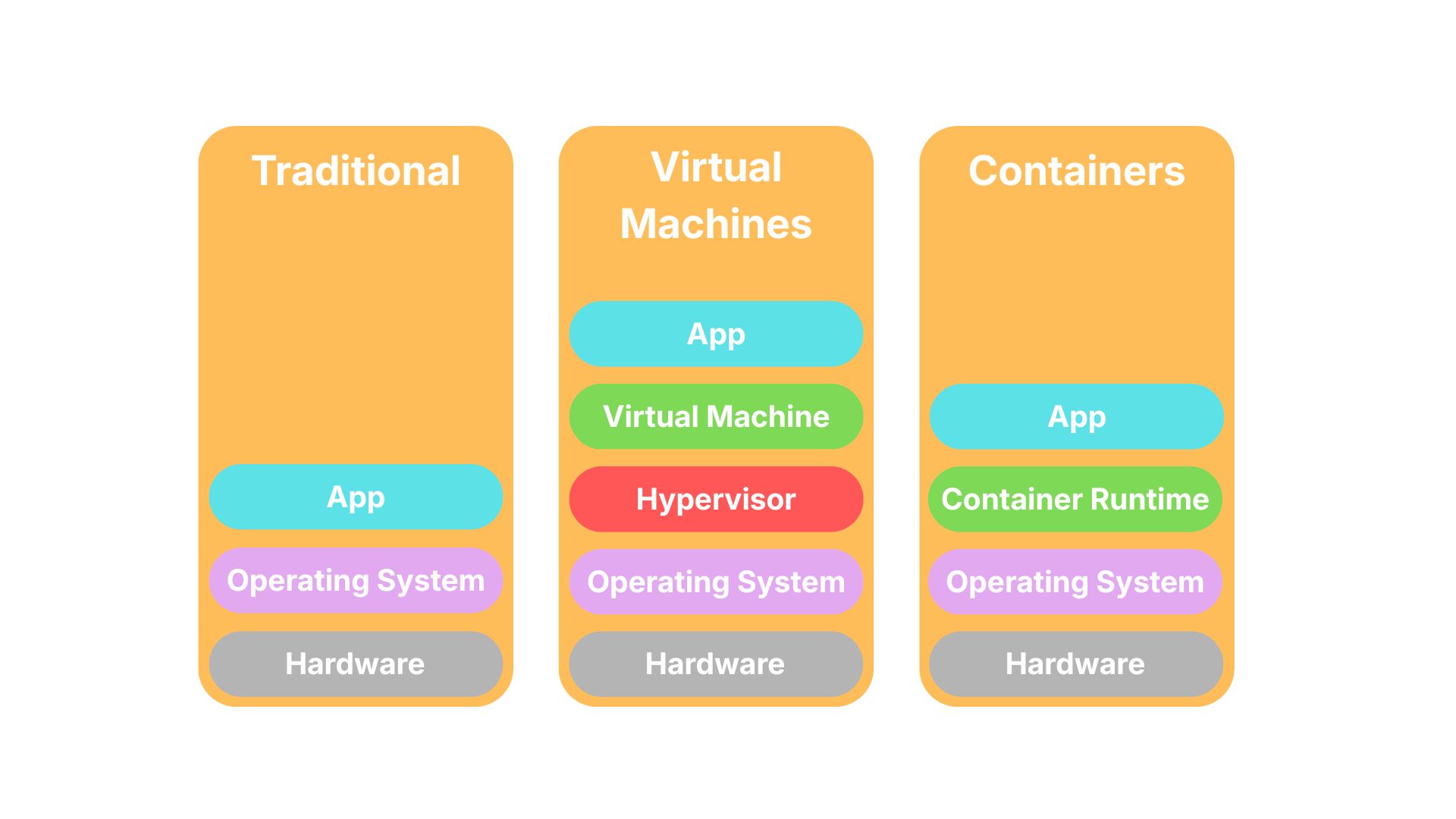
So if you had a web application, you would deploy that application to your single physical server. The web application would use the underlying operating system, memory and CPU. For our example, our API would need Java and Postgres installed on the machine along with any other dependencies and config.
Not only would this usually be under-utilising the CPU and memory of the machine for a single application, scaling would be difficult as we would have to provision another server, with all the same setup. It would make things more difficult to keep in sync. You would also be tied to the underlying machine operating system.
It was also difficult to develop an application locally and be confident that it would then run the same on a server with a potentially different setup to your local machine.
Virtual Machines
Virtual machines (VMs) then became popular by improving isolation significantly. VMs would package the operating system, application dependencies, runtime software and the application itself altogether. The VM would also share memory and CPU from the underlying machine between multiple deployed VMs. A hypervisor was used to manage multiple VMs and allocate memory and CPU to each VM.
VMs solved some issues like replicating setup and creating more predictable configuration between multiple instances of an application, making it easier to scale. However, they were heavyweight needing a whole guest operating system to run, slower to startup and were more resource intensive. You would've run 3 operating systems just to run 3 applications.
Containers
Containers were designed to keep the isolation benefits of VMs while dramatically reducing overhead.
Containers package the application, dependencies and runtime libraries. But unlike VMs, containers share the host operating system kernel. So now you only need 1 operating system to run 3 applications.
Sharing the host OS makes the containers faster to startup and resource usage is much lower. Containers are also more consistent and highly portable. They package the runtime environment and rely on using a container runtime to run. So if you try running them locally on your machine that has a container runtime like Docker, they are highly likely to work on any machine that supports a container runtime.
Scaling is also made easier, as orchestration technologies like Kubernetes can quickly start and stop these lightweight containers.
Deployment Architecture Comparison
What Is Docker?
Docker is the most popular platform for building and running containers.
It allows us to:
- Build container images
- Run containers locally
- Share images through registries
- Deploy consistently across environments
A container image is essentially a blueprint or snapshot of your application.
Installing Docker
To follow along with the rest of this blog, if you haven't already, make sure to install Docker Desktop and the Docker Engine for your operating system.
To install Docker, you can follow the Docker section in the Java Spring Boot Prerequisites page.
Creating Our Dockerfile
A Dockerfile defines how our container image is built.
We can create a Dockerfile in the root of our project.
Dockerfile
And then add the following:
FROM eclipse-temurin:21-jdk

WORKDIR /app

COPY build/libs/crud.app-0.0.1-SNAPSHOT.jar app.jar

EXPOSE 8080

ENTRYPOINT ["java", "-jar", "app.jar"]
Understanding the Dockerfile
The following defines the base image used to run our application. It already contains Java so we don't need to install it ourselves.
FROM eclipse-temurin:21-jdk
You can find lots of different base images from Docker Hub.
In the next section, the WORKDIR part sets the working directory to /app then the COPY part will copy our application jar that is built after running ./gradlew build into /app/app.jar
WORKDIR /app

COPY build/libs/crud.app-0.0.1-SNAPSHOT.jar app.jar
This next part will expose the Docker application to listen on port 8080:
EXPOSE 8080
Then this final part will execute when the container starts, running our app.jar using the java command.
ENTRYPOINT ["java", "-jar", "app.jar"]
Adding a .dockerignore file
We can add a .dockerignore file to the root of our project. This file will prevent any unnecessary files from being copied into the Docker build context. Reducing the image build time, size and avoid leaking any uneccessary files.
.dockerignore file contents:
.gradle
build
!build/libs/
.idea
.git
Building the Docker Image
First we need to build the application using:
./gradlew build
This will create the application jar in build folder:
build/libs/crud.app-0.0.1-SNAPSHOT.jar
We can then build the image using this command:
docker build -t our-api .
docker build- Build an image-t- Tag/name of the imageour-api- Image name (this can be whatever, useour-apifor the rest of the blog examples).- Current directory as build context
Viewing Images
Once you've built the image, you can view a list of local Docker images on your machine using this command:
docker image ls
You should see your built image outputted in the console like so:
REPOSITORY            TAG       IMAGE ID       CREATED         SIZE
our-api               latest    e25a9cc47cae   3 seconds ago   548MB
...                   ...       ...            ...             ...
Running the Container
Once our image has been created, we can run our application in Docker using the following command:
docker run -p 8080:8080 our-api
The -p flag will publish a container's port(s) to the host. So it connects the port of the Docker container inside the Docker container runtime to the port of our local machine. This allows access to the app in Docker at the URL http://localhost:8080.
However, when we run the container, you'll notice we get the following exception:
Caused by: java.net.ConnectException: Connection refused
This is due to the application running in Docker and not being able to find a connection to our database.
This happens because our application properties currently point to the following database connection url:
jdbc:postgresql://localhost:5432/test_db
Localhost changes meaning depending on where the application is running. On your machine, localhost means your machine. Inside Docker, localhost means the container. Since our database is not running inside the application container, we need to provide a Docker specific database host using environment variables.
Using Environment Variables
So to fix this issue, we can pass through environment variables, using the -e flag, at container runtime like so:
docker run \
  -p 8080:8080 \
  -e SPRING_DATASOURCE_URL=jdbc:postgresql://host.docker.internal:5432/test_db \
  our-api
host.docker.internal is a special DNS name provided by Docker. It allows the Docker container inside it's own network to reach the network on your local machine.
So something like this:
Container
↓
host.docker.internal (resolves to a dynamic IP address on your machine)
↓
Your local machine
↓
PostgreSQL on localhost:5432
We should now be able to access our API at http://localhost:8080/api/users. You'll need to provide the username admin and password supersecure to access the endpoint via basic auth.
Stopping Containers
We can also stop the container by listing all containers:
docker ps -a
and then running the stop command, replacing the <container-id> with the container you'd like to stop:
docker stop <container-id>
Image Tags and Versioning
A best practice when creating Docker images is to tag and version images. This helps track releases, allows rolling back of deployments and avoids accidental upgrades.
We can tag our image like so:
docker build -t our-api:v1 .
When viewing our images, you can now see our two images, the latest image and the v1 image:
REPOSITORY            TAG       IMAGE ID       CREATED          SIZE
our-api               latest    e25a9cc47cae   20 minutes ago   548MB
our-api               v1        e25a9cc47cae   20 minutes ago   548MB
...                   ...       ...            ...              ...
Then we can run our versioned image instead:
docker run \
  -p 8080:8080 \
  -e SPRING_DATASOURCE_URL=jdbc:postgresql://host.docker.internal:5432/test_db \
  our-api:v1
This makes it easier to make sure we are running the correct changes to our image.
Publishing Images (Optional)
NOTE: This part is optional as in most deployments a published Docker image is pulled down and deployed. However, in the next blog post we will do something slightly different to deploy our application. Therefore, the publishing of the Docker image isn't strictly necessary.
For a usual production application, the final part of Dockerizing our application to get it ready for deployment, is publishing our container images to some sort of container registry. A container registry is just storage for our container images. They are similar to Git repositories, but for container images. Popular registries include: Docker Hub, GitHub Container Registry (GHCR) and Amazon ECR just to name a few.
Publishing our images to a container registry will allow us to store our images, track versions and pull down images to run in various environments. This comes in handy when deploying/running our app using an orchestration technology like Kubernetes.
Using GHCR
Because our project resides in GitHub, we can use public packages in GitHub Container Registry (GHCR).
As mentioned previously, ensure you've forked this repo, otherwise you won't have access to publish packages to the repository.
Logging Into GHCR
To publish to GHCR, we first need to log in to give Docker access to push and pull from GHCR.
For your forked repo, you'll need to create a personal access token with the following permissions:
write:packages
read:packages
NOTE: make sure to replace YOUR_GITHUB_TOKEN and YOUR_GITHUB_USERNAME where applicable for the following commands in the terminal.
You can then run the following command to log into GHCR through Docker:
echo YOUR_GITHUB_TOKEN | docker login ghcr.io -u YOUR_GITHUB_USERNAME --password-stdin
You should see the following in the terminal on successful login:
Login Succeeded
Tagging the Image for GHCR
Next we need to tag the image for GHCR. We can do that with the following command:
docker tag our-api:v1 ghcr.io/YOUR_GITHUB_USERNAME/our-api:v1
NOTE: make sure to run the Image Tags and Versioning step beforehand to get the our-api:v1 image.
You can view that the tag was created by running:
docker image ls
You should see the GHCR tagged image like so:
REPOSITORY                         TAG       IMAGE ID       CREATED         SIZE
our-api                            v1        4639a1744235   2 minutes ago   548MB
ghcr.io/full-bearded-dev/our-api   v1        4639a1744235   2 minutes ago   548MB
...                                ...       ...            ...             ...
Pushing the Image to GHCR
We now need to push the image to GHCR using the following command:
docker push ghcr.io/YOUR_GITHUB_USERNAME/our-api:v1
Once pushed, you should be able to find your new package in your GitHub account under: https://github.com/YOUR_GITHUB_USERNAME?tab=packages.
You can view the repo example here at https://github.com/full-bearded-dev?tab=packages.
By default, the package will be private.
Pulling and Running the Published Image
The last step is to actually pull and run the published image.
We can do that by pulling the image:
docker pull ghcr.io/YOUR_GITHUB_USERNAME/our-api:v1
And the running the image like so:
docker run \
  -p 8080:8080 \
  -e SPRING_DATASOURCE_URL=jdbc:postgresql://host.docker.internal:5432/test_db \
  ghcr.io/YOUR_GITHUB_USERNAME/our-api:v1
There we have it, we can now publish our container images to GHCR and pull the image down to run anywhere. In a production setup, the publishing of images would probably be done in a CI/CD pipeline using technologies like Jenkins, GitHub actions or CircleCi etc. These technologies would run other jobs like tests, code styling and formatting and code analysis before pushing the images to a container registry. However, for the purpose of this tutorial, we will stick to manually uploading the images.
What's Next?
So to recap we learnt:
- Previous deployment techniques using traditional servers and virtual machines
- What containerisation is and why it's a popular approach when deploying applications
- What Docker is
- How to build our own Docker image and run it as a container
- How to tag our Docker images to version our images
- How to use a container registry like GHCR to publish and distribute our container images